Kuluka Guide

Your first thoughtful minute.

See how a daily idea becomes a small act of care, how optional Apple Intelligence personalization works on device, and how to review every message draft before sending.

Apple Intelligence selection requires iOS 26 or later on an eligible Apple Intelligence-capable iPhone. The personalization screenshots below are fictional simulator captures from an earlier stub and may show earlier labels. The current behavior and control names are described in this guide.

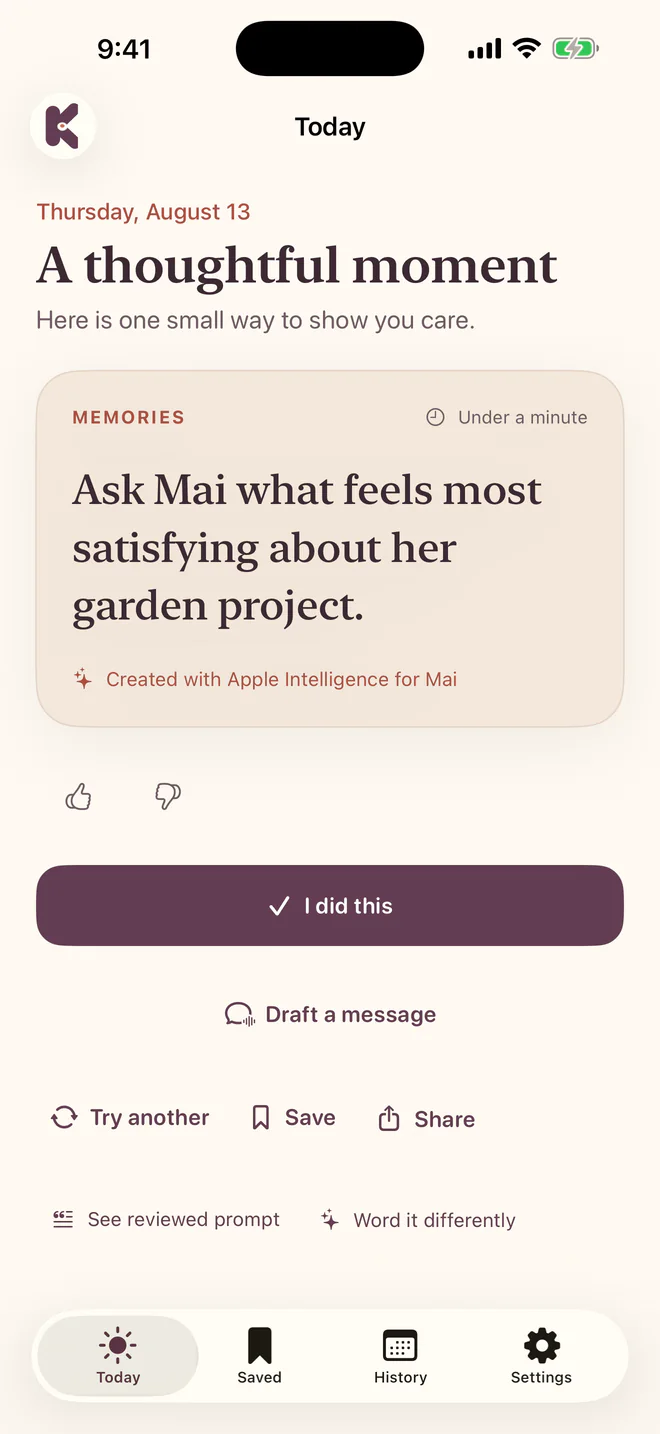
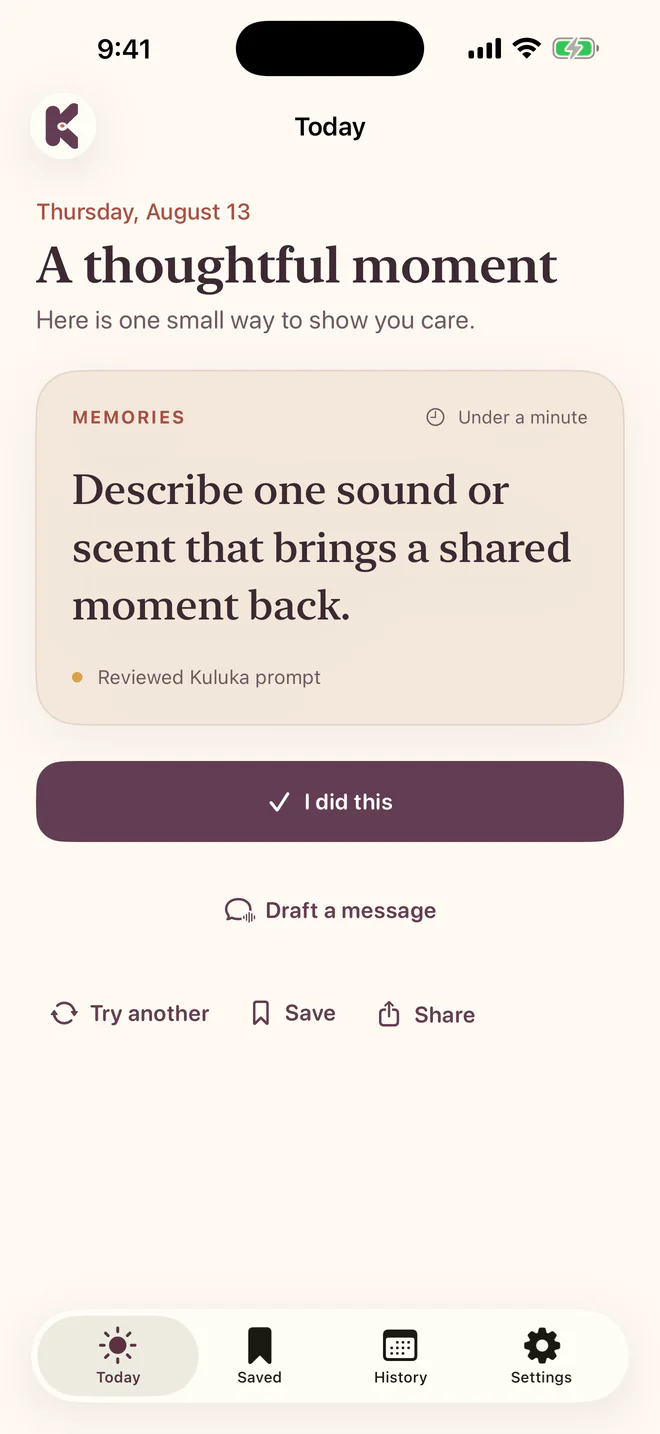
Kuluka Today screen with a reviewed daily prompt, completion and message-drafting buttons, and actions to swap, save, or share
Start with one clear idea for today

01 · Daily prompts

Open, choose, act.

Kuluka chooses one prompt for the local day. It stays steady when you close the app and return, so the idea is waiting instead of changing under you.

  1. 1

    Read today’s idea

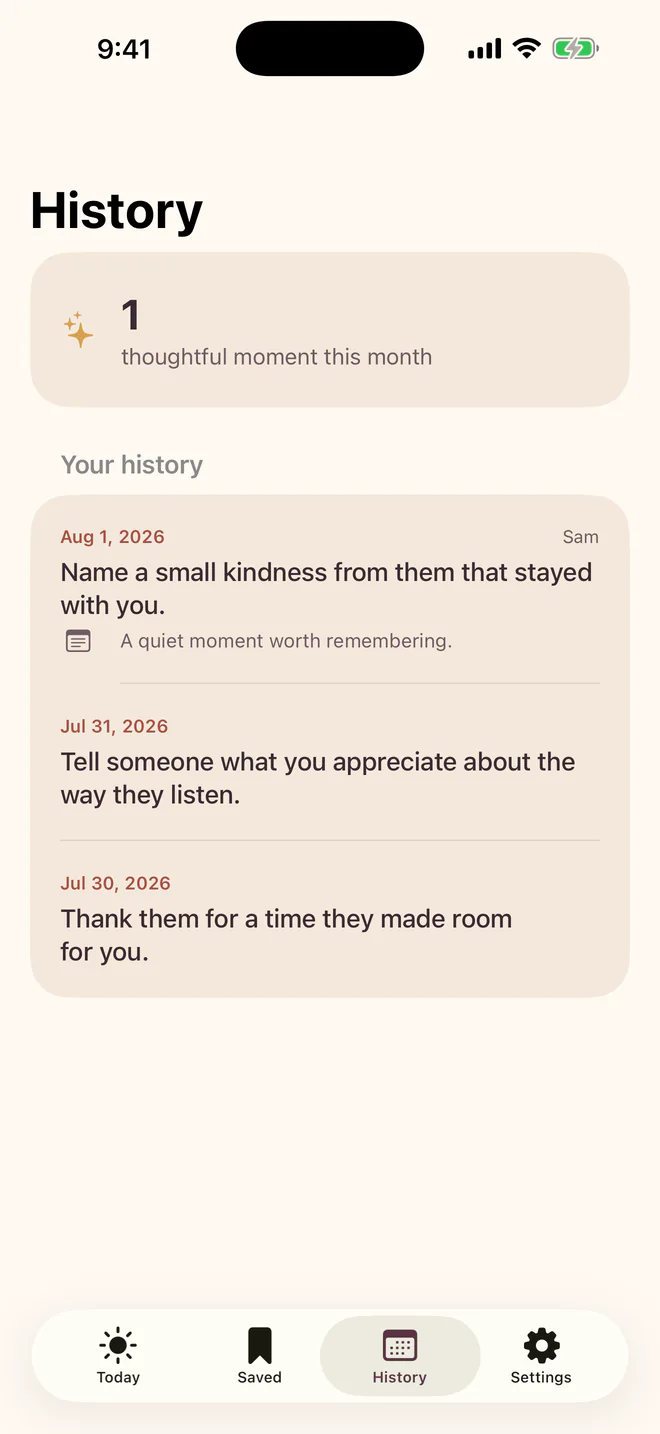
    The card shows the action, its category, and the expected effort.

  2. 2

    Choose what fits

    Select Try another whenever the first idea is not right for today.

  3. 3

    Mark the moment

    Select I did this. Add a private note only if you want one.

02 · Apple Intelligence

A reviewed idea, chosen for someone real.

On iOS 26 devices that can use Apple Intelligence now or after a recoverable availability change, Kuluka introduces personalization during onboarding so its private on-device benefit is clear from the start. You choose whether to set it up, skip it, or turn it off later. Earlier iOS versions and ineligible hardware skip that setup page.

Step 1

Choose the AI-first path when offered, or skip it

When the device can offer personalization now or after a recoverable availability change, onboarding explains how Kuluka can choose a relevant reviewed idea on your iPhone. Continue to set up one person, or choose the non-AI path and start with the reviewed prompt library. Both choices produce a complete, usable setup.

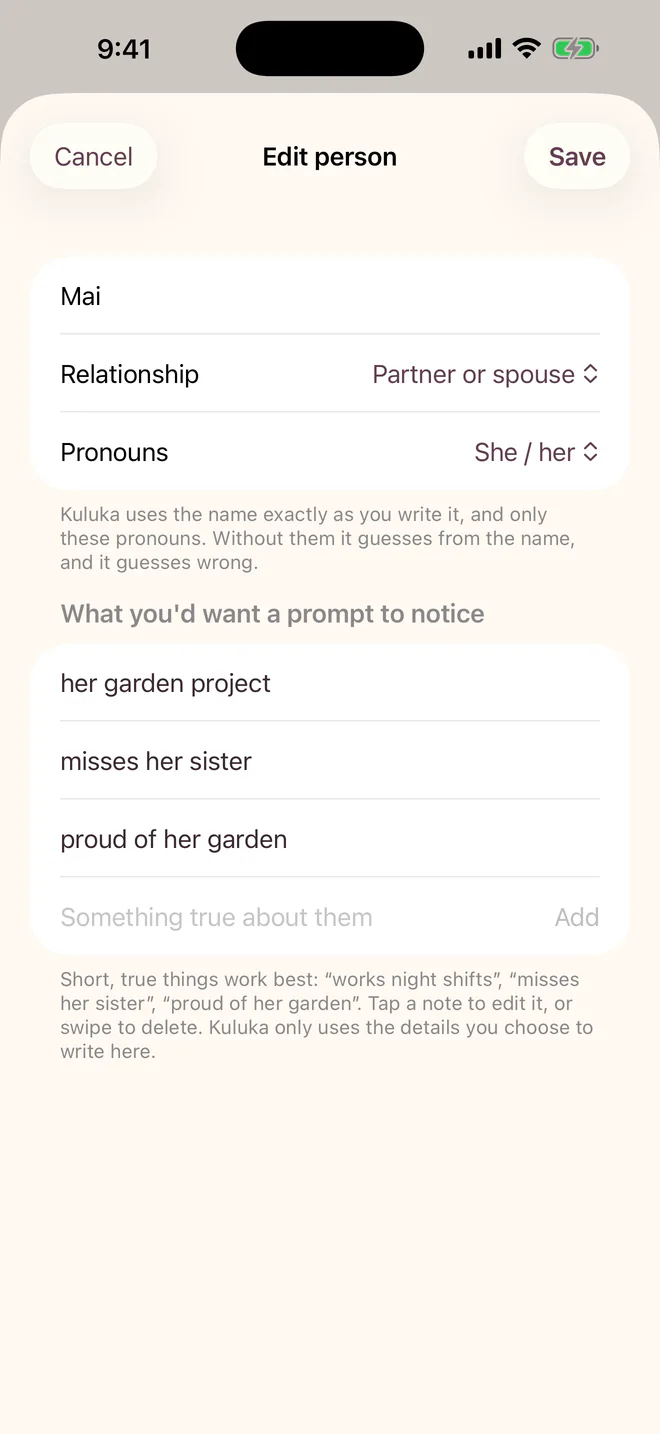
Illustrative earlier edit-person screen for the fictional person Mai with relationship, she and her pronouns, and three details
An earlier fictional simulator layout. Its visible privacy footer is obsolete; current behavior is described beside this image.
Step 2

Add only what helps

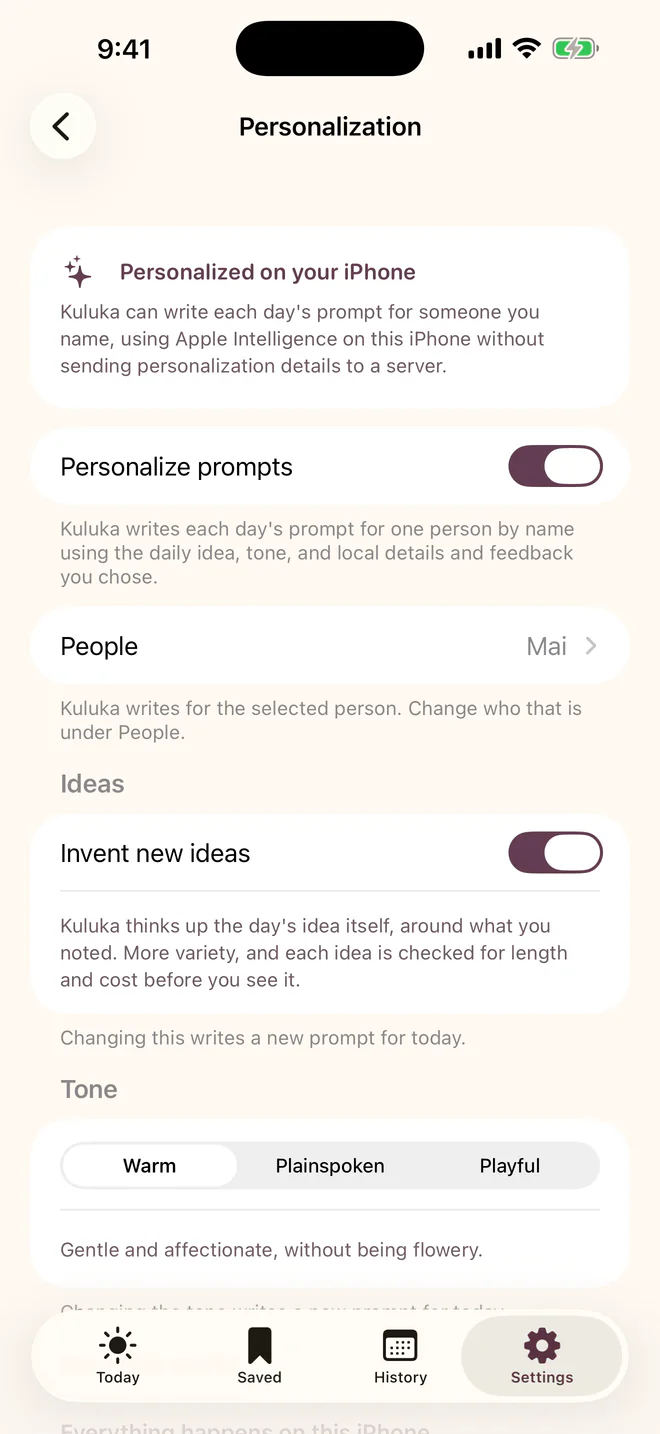
Add a name, relationship, pronouns, and a few short, true details in Kuluka. Then pick Warm, Plainspoken, or Playful. These are Kuluka details you control, not fields copied from a linked phone contact.

Illustrative earlier personalization settings screen for the fictional person Mai with tone controls
An earlier fictional simulator layout. Current builds have no idea-authoring control.
Step 3

See today’s personal idea

Today labels a successful choice Selected with Apple Intelligence. Use the thumbs-down control to exclude this idea from later choices for that person, selectChoose another idea for another reviewed option, or chooseSee original daily prompt. If selection cannot finish, Kuluka keeps usable reviewed wording visible and explains what happened.

Illustrative earlier Today screen showing the placement of a selected prompt, message drafting, feedback, and alternate-prompt controls
Earlier fictional simulator layout. Current copy is Selected with Apple Intelligence, Choose another idea, and See original daily prompt.

What Kuluka sends to the on-device model

Filtered notes about the selected person, their relationship, your chosen tone, and the text for a bounded set of human-reviewed choices. Kuluka does not serialize the separately stored name or pronoun fields, linked Contacts fields, completion notes, or separately stored records for every other person. It removes stored-name tokens from notes and excludes notes that look like email addresses, web links, or phone-like numbers. Ordinary free-form notes can still contain pronoun words, postal addresses, references to other people, or other personal text. Sensitivity and relationship compatibility are checked locally first.

What Apple Intelligence returns

Only an opaque token created for that request. Kuluka resolves the token to reviewed prompt text, then applies the selected person’s name or pronouns deterministically on the iPhone. The model never writes the daily prompt shown on screen, so there is no generated-wording critic or safety-rejection loop. If AI cannot choose, a reviewed fallback stays ready; when Apple Intelligence is available, Kuluka may safely apply the stored name locally.

What the feature requires

iOS 26 or later, a supported Apple Intelligence-capable iPhone, Apple Intelligence turned on, and a ready supported language. On iOS 18 and other unsupported devices, the same people, contact-linking, drafting, review, and sharing flows use reviewed fallback wording.

04 · Message drafts

Start with help. Finish in your voice.

Message drafting is a separate, constrained task from daily-prompt selection. Apple Intelligence may select among action-matched reviewed variants only when Personalize prompts is enabled, the current idea permits it, Apple Intelligence is available, and a nonempty render-safe recipient is available. Every other state keeps the deterministic reviewed starter without model work. The result is always an editable draft, never an automatic message.

  1. 1

    Create a draft

    When the model conditions above are met, use today’s idea to select a matching reviewed starter on device. In every state, Kuluka first provides the deterministic default starter.

  2. 2

    Review and edit

    Read every word, remove anything that does not sound like you, and make the message fit the moment.

  3. 3

    Confirm the recipient and Send

    Choose or confirm the recipient in Apple’s composer. Only your tap on Send hands the message to Messages. You can edit again or cancel instead.

Fictional editable draft

“Hey Mai, I was thinking about you. How are you doing today?”

For an eligible draft under the conditions above, Apple Intelligence selects among matching reviewed variants. Kuluka never sends a draft automatically or in the background.

05 · Save and remember

Keep what mattered.

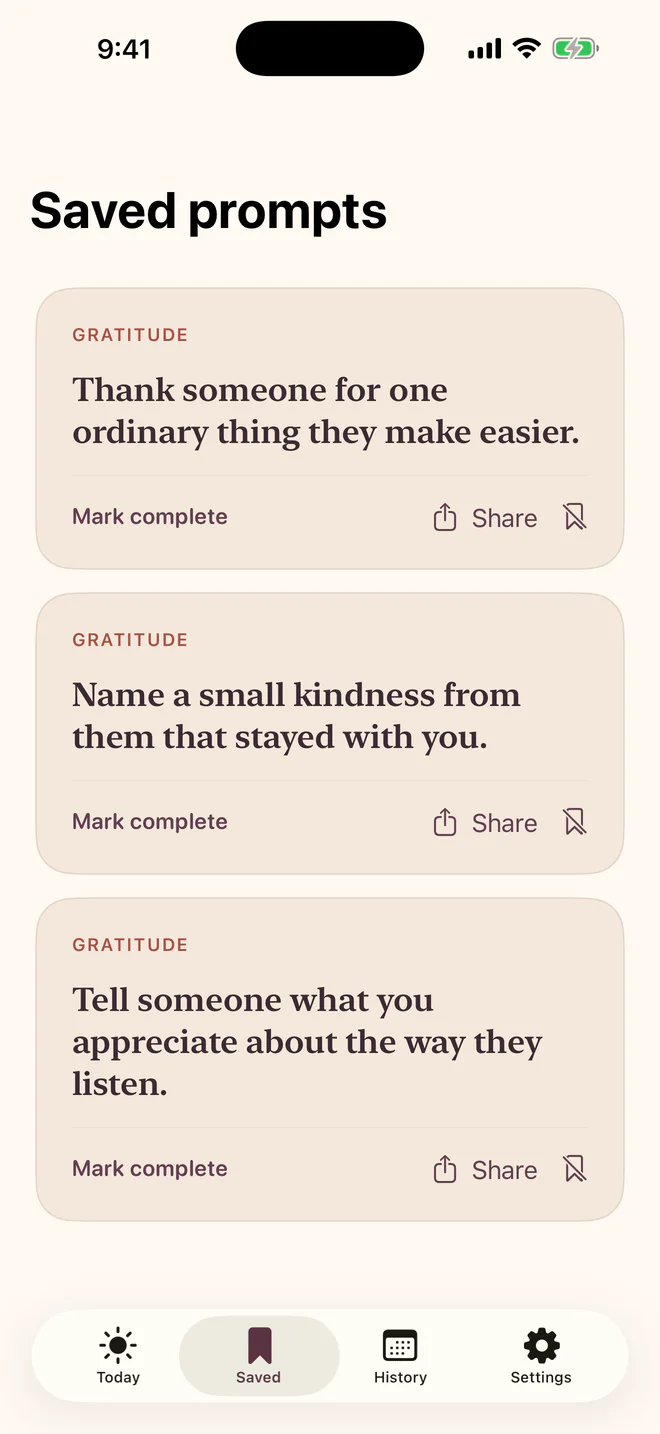
Save an idea for later or keep a private record of an action you completed. Both stay in your local Kuluka data unless you choose to export or share them.

Gentle reminders

Choose one local daily notification and the time that suits you. No missed-day warning follows.

Widgets

Use a Home Screen widget for the prompt, or a discreet Lock Screen widget that avoids private wording.

Share on purpose

Share prompt text or a branded image through Apple’s share sheet. You choose the destination.

06 · Privacy and control

Your details are not a product.

Kuluka requires no account and has no advertising or analytics SDK. Apple Intelligence selection runs through the on-device Foundation Models framework with no Kuluka server request. A contact link is handled separately and is never included in a model request.

  • Export when you chooseAn export can include people, details, feedback, history and private notes. Save it somewhere you trust.
  • Delete preciselyUnlink a contact, remove a person, delete individual history or a recovery copy, or delete all local personal data.
  • Know the device boundaryExplicit exports, Apple’s message composer, sharing destinations, and iOS backups are separate from Kuluka’s on-device processing.

Ready for one small act?

Kuluka is ready for your iPhone.

Download on the App Store